Host a WordPress Site on Acurast
This example runs a full WordPress stack — Apache + PHP + MariaDB — inside an Acurast Cargo deployment and publishes it over the Acurast Tunnel:
- the primary connection serves Apache/WordPress at a real HTTPS URL, and
- the secondary connection carries SSH for shell access to the deployment.
1. Get the repo and open the example
git clone https://github.com/Acurast/acurast-example-apps.git
cd acurast-example-apps/apps/app-cargo-wordpress
2. What's in the app/ folder
| File | Purpose |
|---|---|
start.sh | Entrypoint. Installs Apache, PHP, MariaDB and Dropbear; builds the getifaddrs shim; initializes MariaDB and creates the DB/user; downloads WordPress core; starts Apache on 127.0.0.1:8080 and SSH on 127.0.0.1:2222. |
wp-config.php | WordPress config: takes DB creds from the environment and derives WP_HOME/WP_SITEURL from the request host, so it works at whatever tunnel URL it lands on. Trusts X-Forwarded-Proto so WordPress builds https:// URLs. |
tunnel.py | Opens the reverse tunnel — primary → WordPress (8080), secondary → SSH (2222). |
getifaddrs_override.c | PRoot shim. |
callback.sh | POSTs log / started / error events to your CALLBACK_URL. |
3. (Optional) Use your own domain
By default the tunnel serves on https://<clientId>.acu.run, with a Let's Encrypt
certificate provisioned automatically — nothing to set up. To use your own domain
suffix instead, do the one-time DNS setup (a wildcard record and an _acu TXT
record) from the
Tunnel Quick Start
(step 2) and set DOMAIN_SUFFIX_MAINNET/_CANARY below.
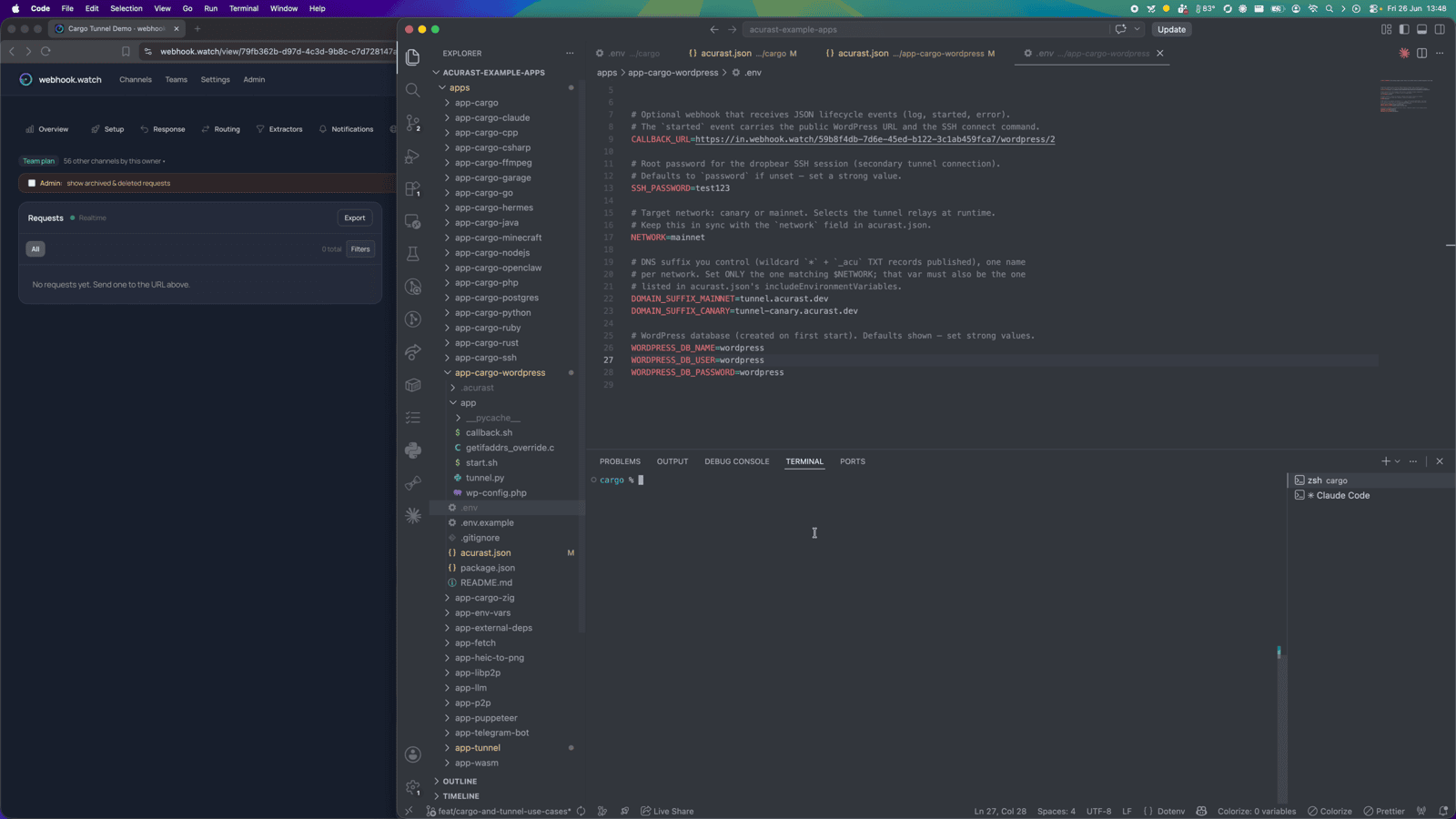
4. Configure .env
cp .env.example .env
| Variable | Required | What to set |
|---|---|---|
ACURAST_MNEMONIC | ✅ | Deployer seed phrase. Never commit it. |
NETWORK | ✅ | canary or mainnet. Must match acurast.json. |
DOMAIN_SUFFIX_MAINNET / _CANARY | optional | Only for a custom domain. Leave unset to serve on acu.run. If set, use the one matching NETWORK and add it to includeEnvironmentVariables. |
SSH_PASSWORD | optional | Root SSH password. Defaults to password — set a strong value. |
WORDPRESS_DB_NAME / _USER / _PASSWORD | optional | Database created on first start. Set strong values. |
CALLBACK_URL | optional | Lifecycle-event webhook. Use webhook.watch. |
Getting a CALLBACK_URL from webhook.watch
Open webhook.watch, grab the unique inspector URL, and
paste it into CALLBACK_URL. The started event that arrives there carries the
public WordPress URL and the SSH connect command.
5. A glance at acurast.json
runtime: "Shell"on aproot-distroUbuntu image.execution:onetime,maxExecutionTimeInMs: 7200000(2-hour window).minProcessorVersions.android: "1.26.0"(tunnel support).includeEnvironmentVariables:CALLBACK_URL,SSH_PASSWORD,NETWORK,WORDPRESS_DB_NAME/USER/PASSWORD.
6. Deploy
npm i
npm run deploy   # runs `acurast deploy`
The CLI shows the reward market and a suggested price — accept it and confirm.
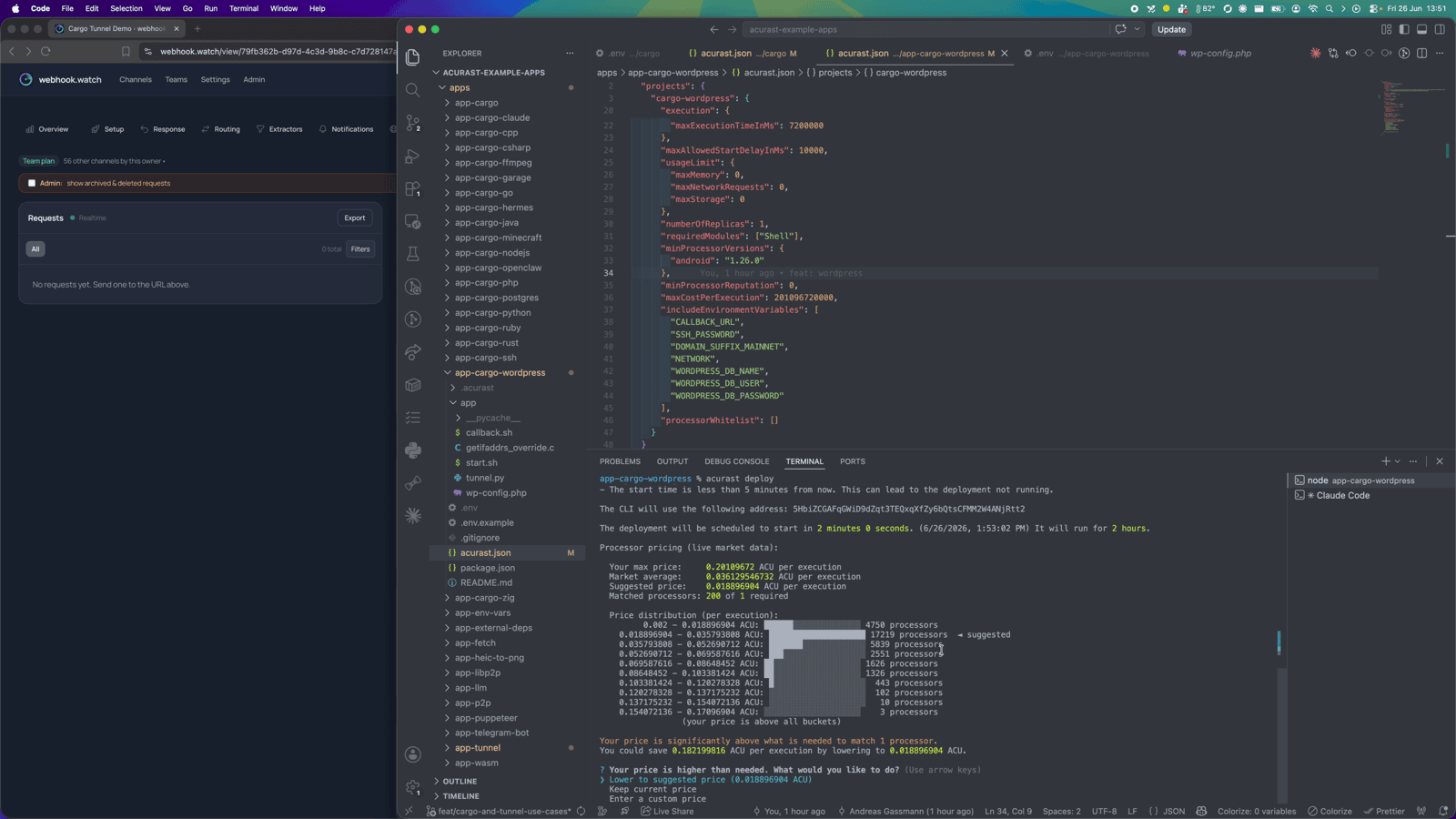
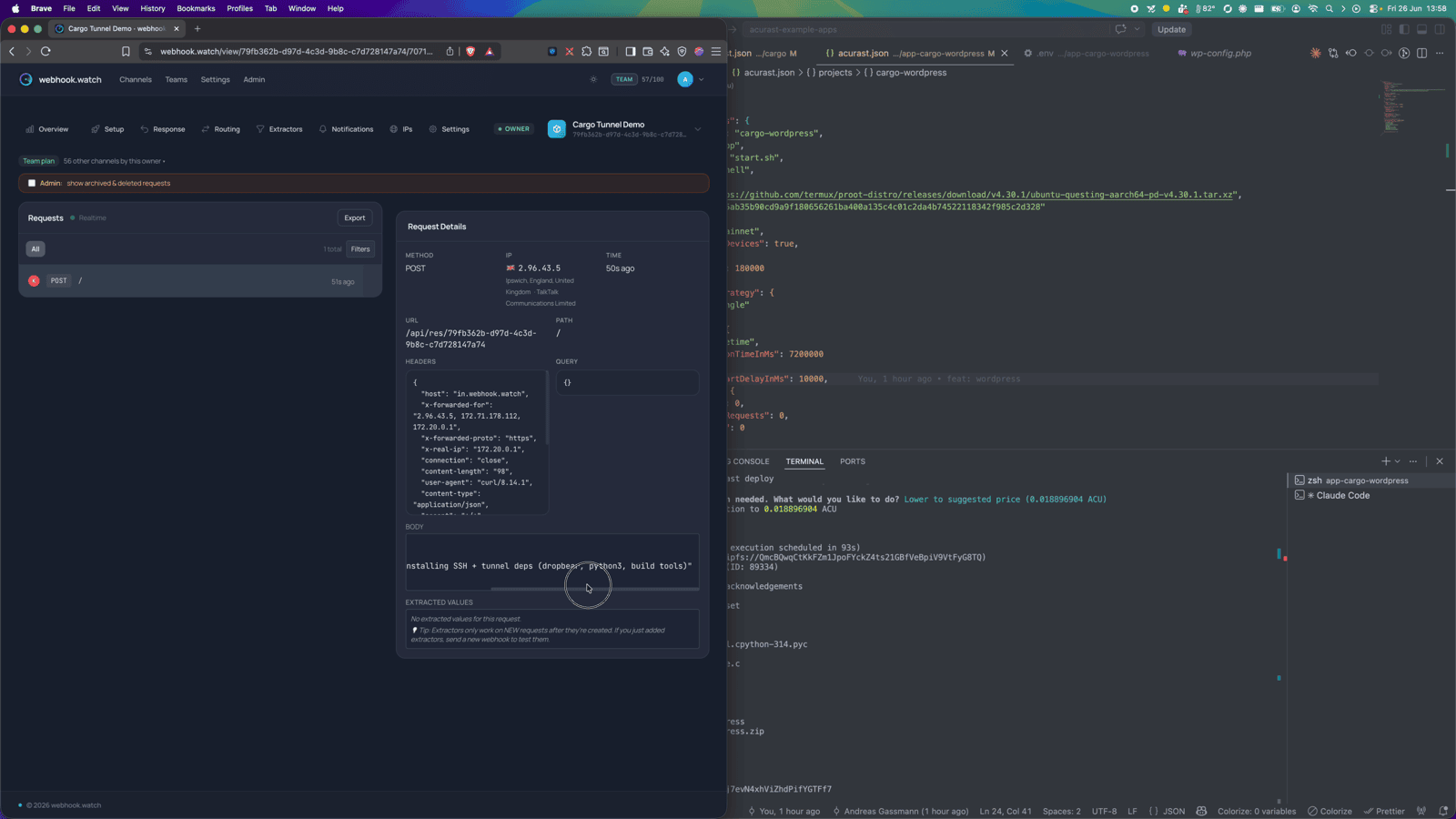
Then watch webhook.watch. The install is heavier than the plain tunnel (Apache,
PHP, MariaDB, WordPress core), so you'll see a run of log events first…
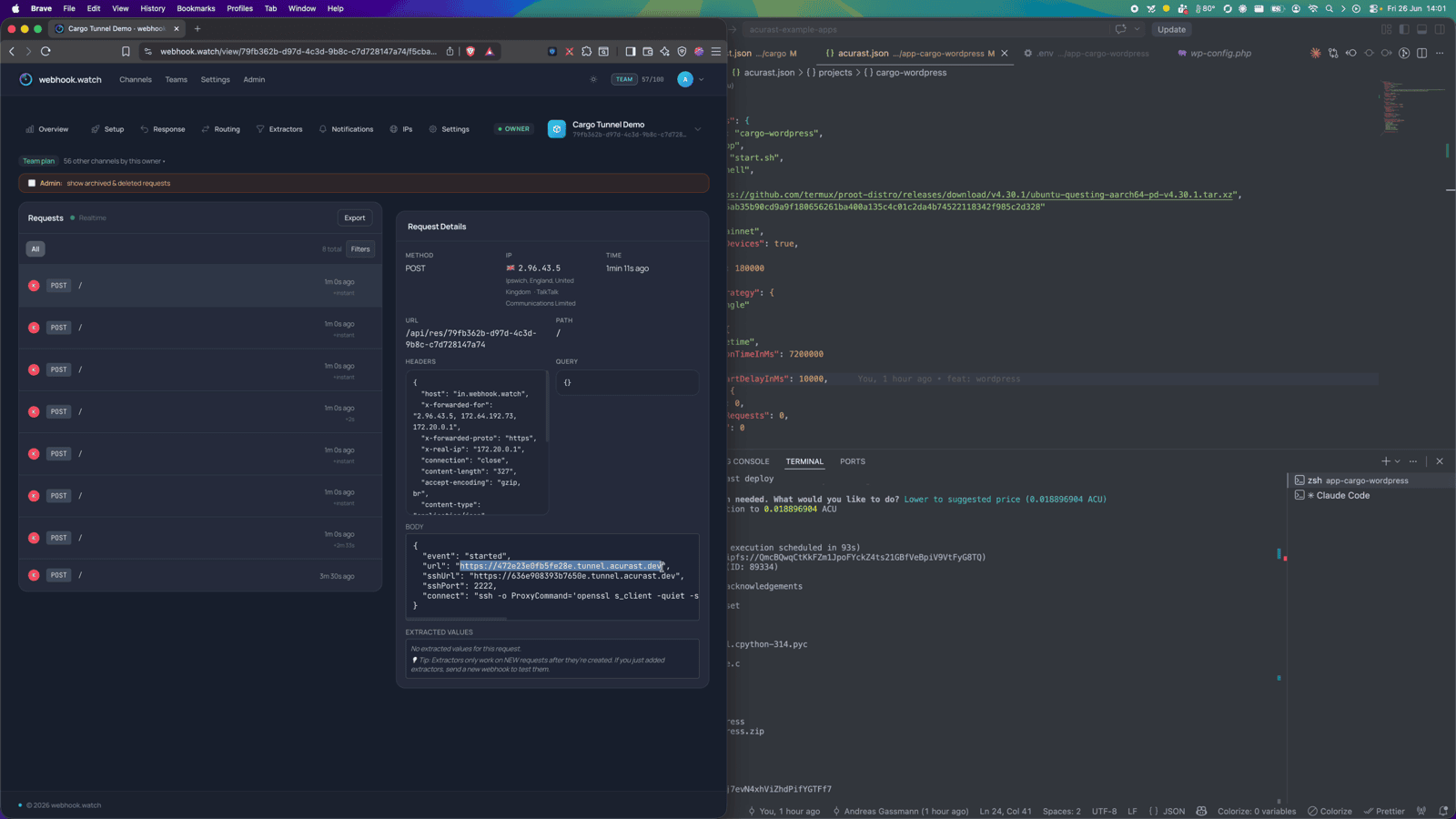
…and finally the started event with the public URL and SSH command.
Part 2 — Setting up the site
Run the install wizard
Open the url from the started event. Because it's a fresh install, WordPress
greets you with its setup wizard — pick a language and fill in the site details.
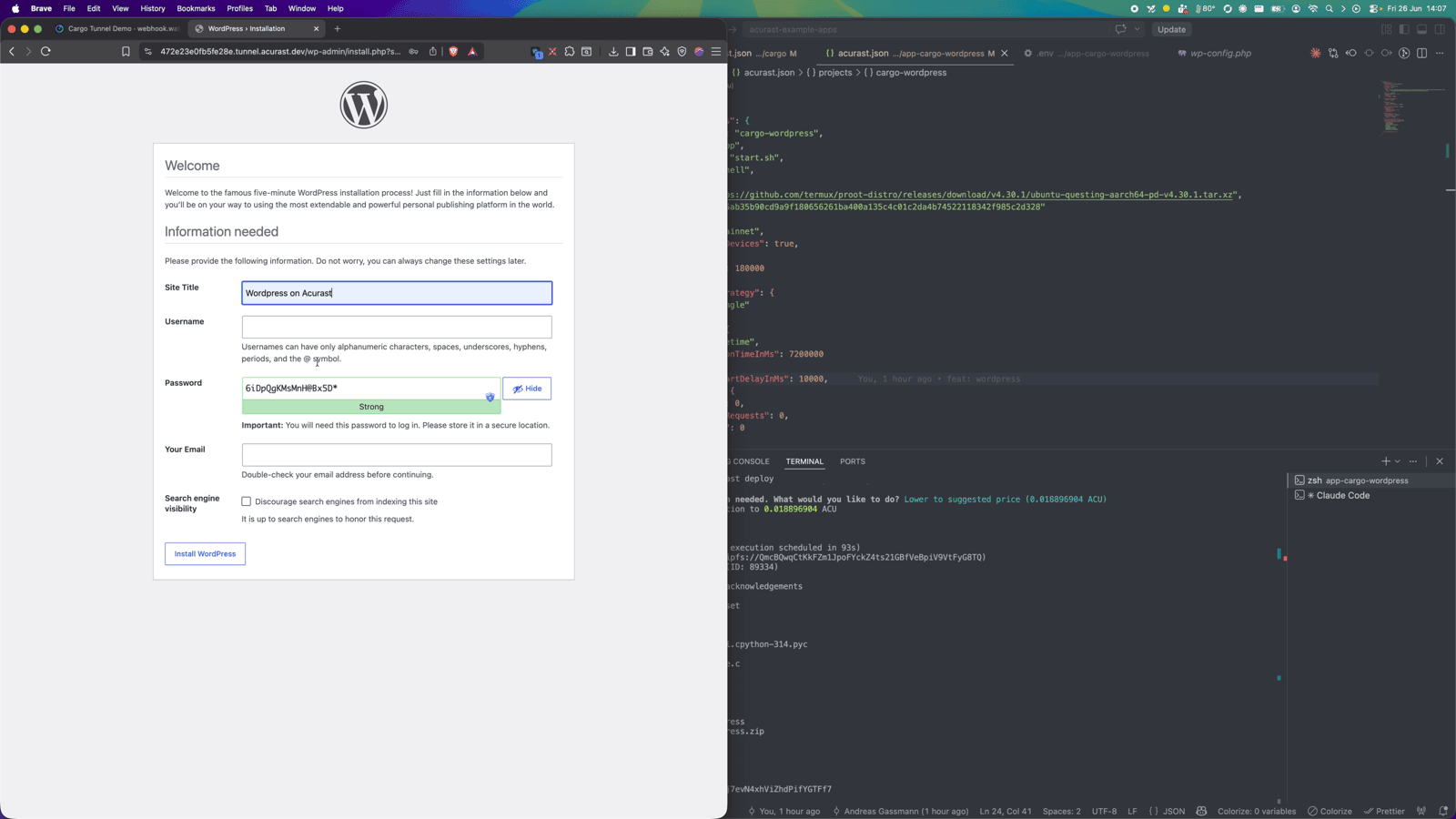
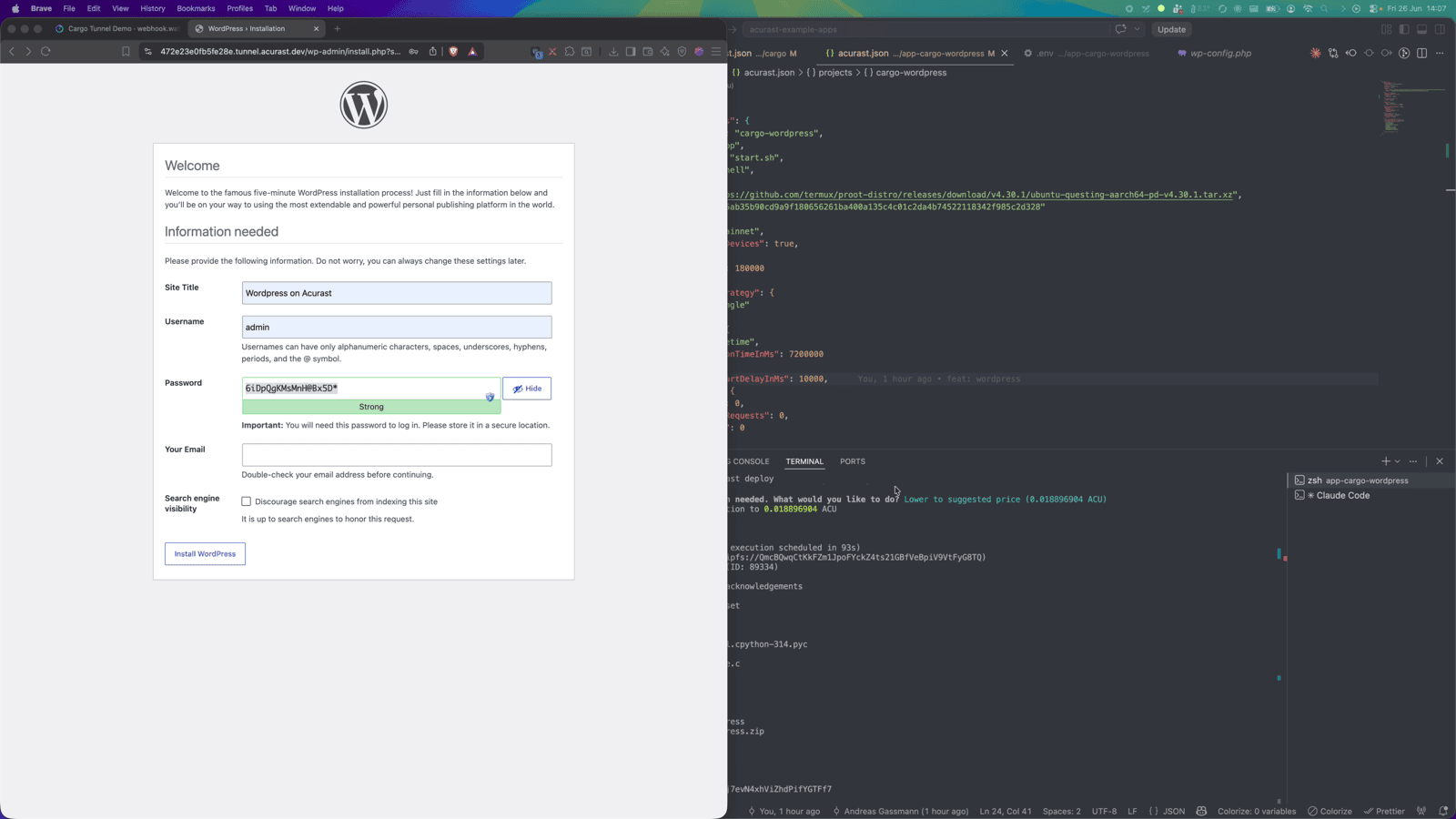
Set the site title, admin user and password, and finish the install.
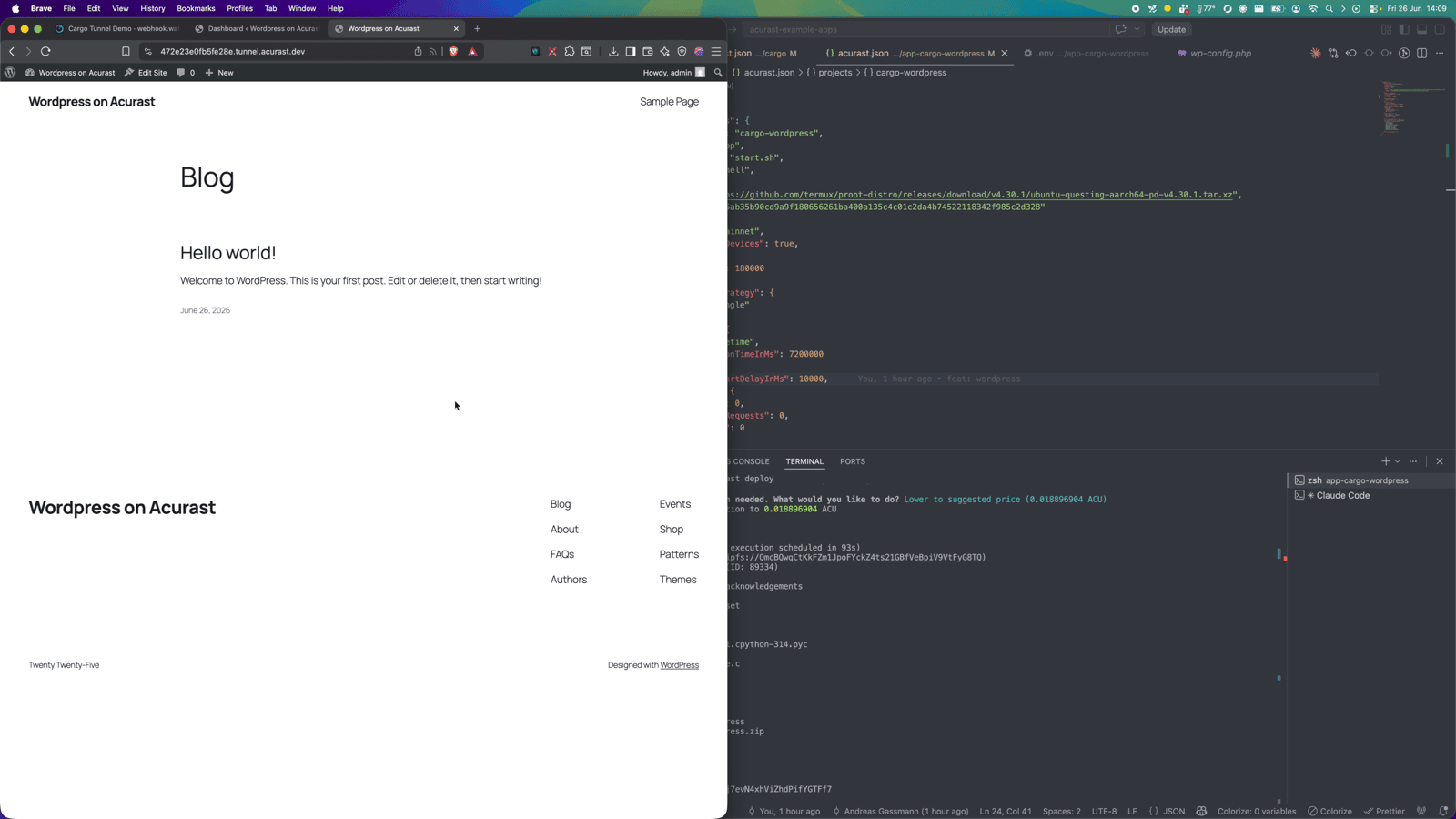
A live site
That's it — you have a real WordPress site running on a phone, reachable at a trusted HTTPS URL.
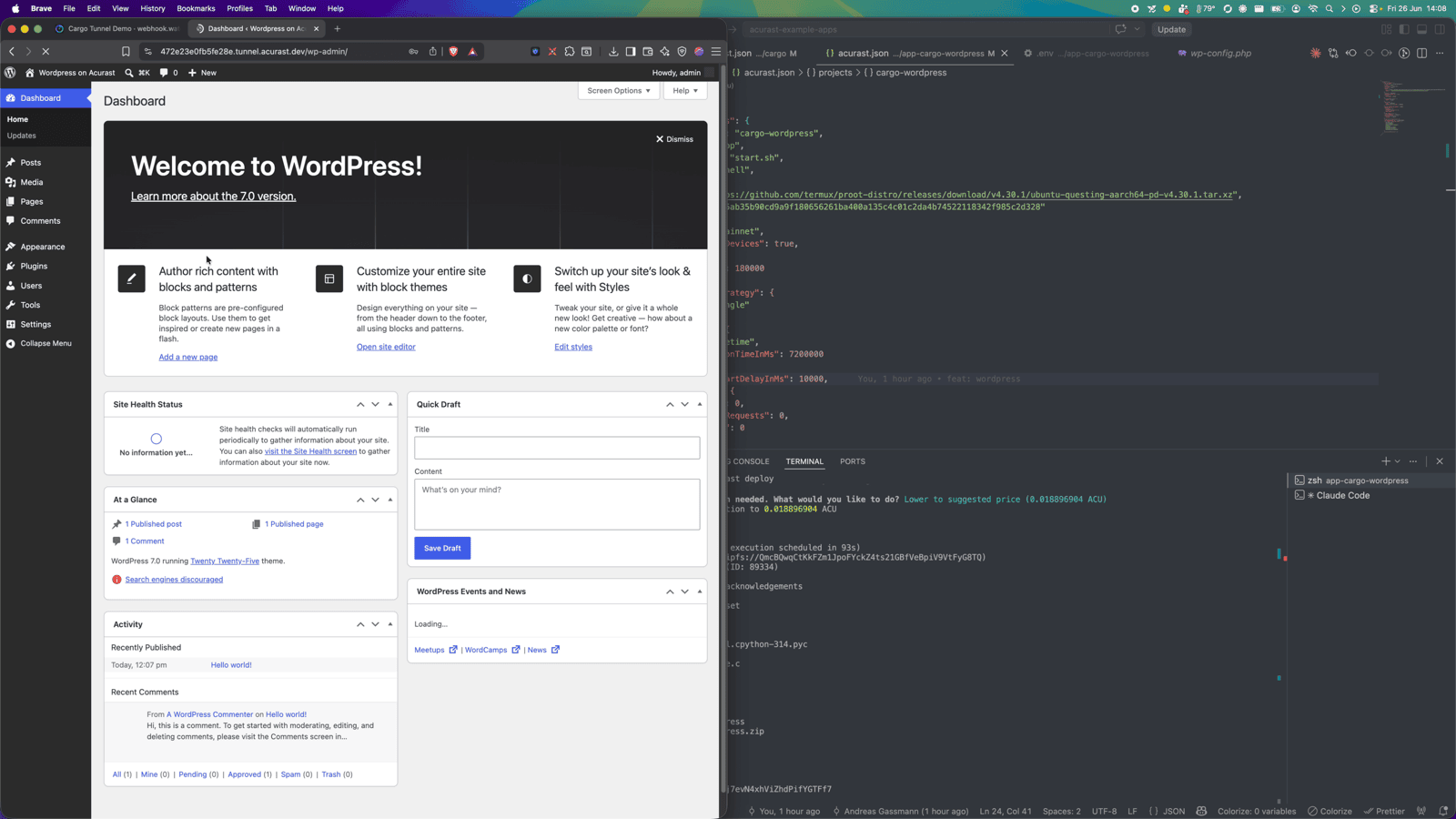
Log in at /wp-admin and you get the full WordPress dashboard — publish posts,
install themes and plugins, everything.
Shell access
Need to poke around? Run the connect command from the started event (it wraps
SSH over the secondary TLS connection) and authenticate with SSH_PASSWORD:
ssh -o ProxyCommand='openssl s_client -quiet \
  -servername <secondaryClientId>.acu.run \
  -connect <secondaryClientId>.acu.run:443' \
  root@<secondaryClientId>
Note: the database and uploads live in the processor's ephemeral storage and are lost when the deployment ends — this is a disposable/demo site, not durable hosting.