DevTools
Introduction
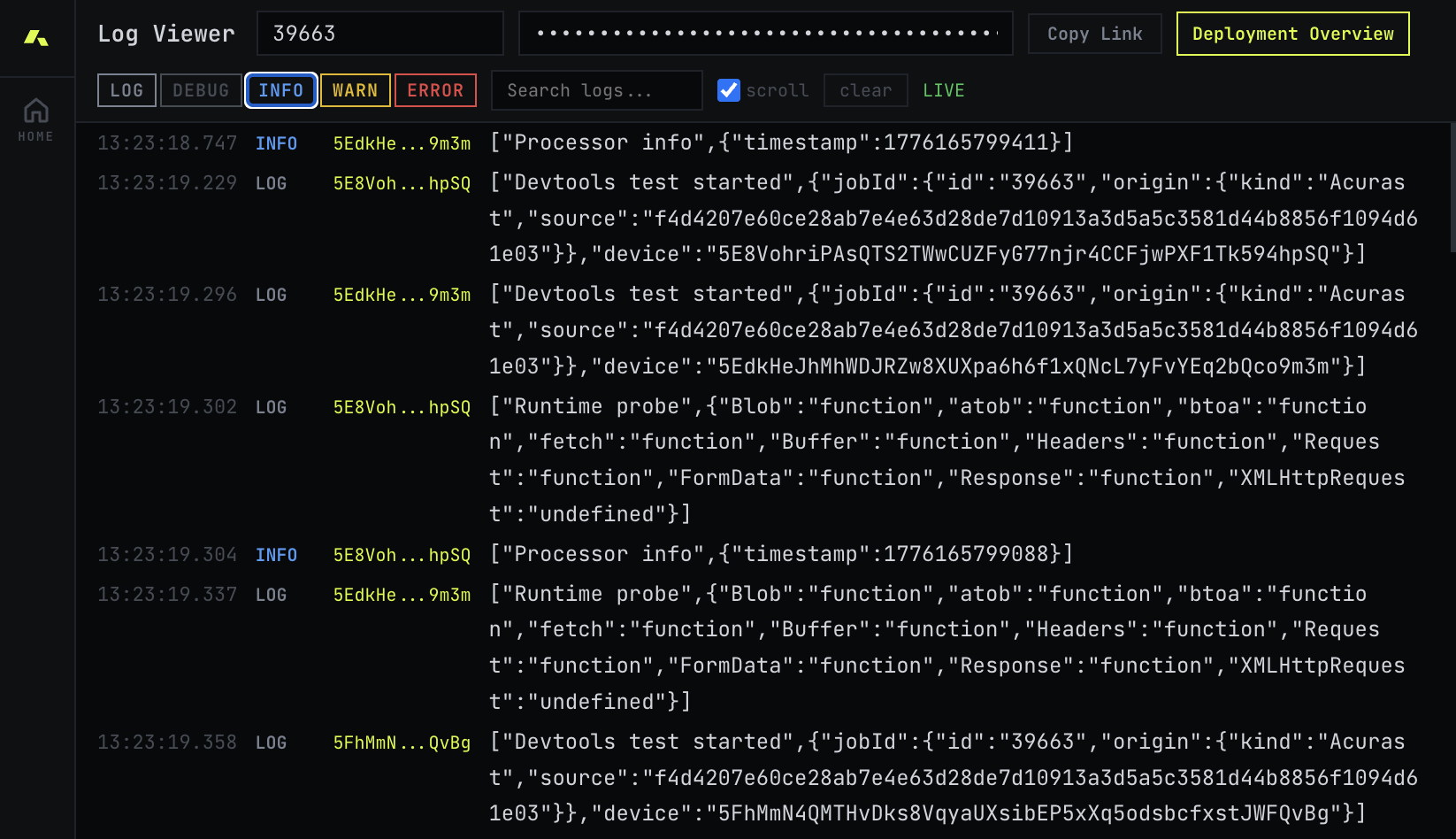
Acurast DevTools is a web-based dashboard that shows live output from your processors, including console.log, console.warn, console.error, console.info, and console.debug messages.
This makes it easy to debug and monitor your deployments in real time.
Setup
1. Enable DevTools in your project configuration (acurast.json):
{
  "projects": {
    "my-project": {
      "projectName": "my-project",
      "fileUrl": "dist/bundle.js",
      "enableDevtools": true
    }
  }
}
2. Deploy your project:
acurast deploy my-project
After deployment, the CLI prints a DevTools URL with a view key — open it in your browser to see your logs.
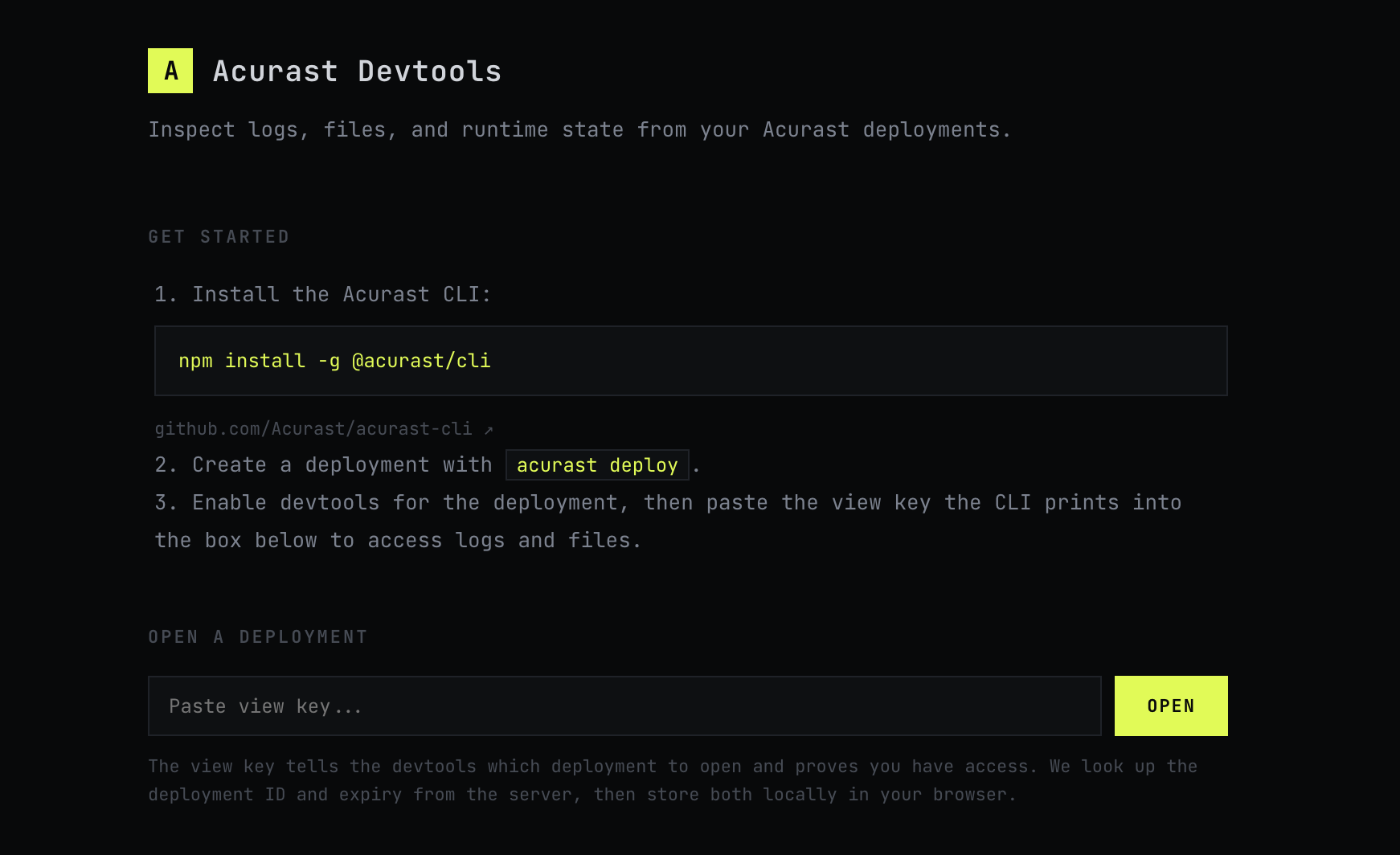
3. Paste the view key to open the DevTools dashboard:
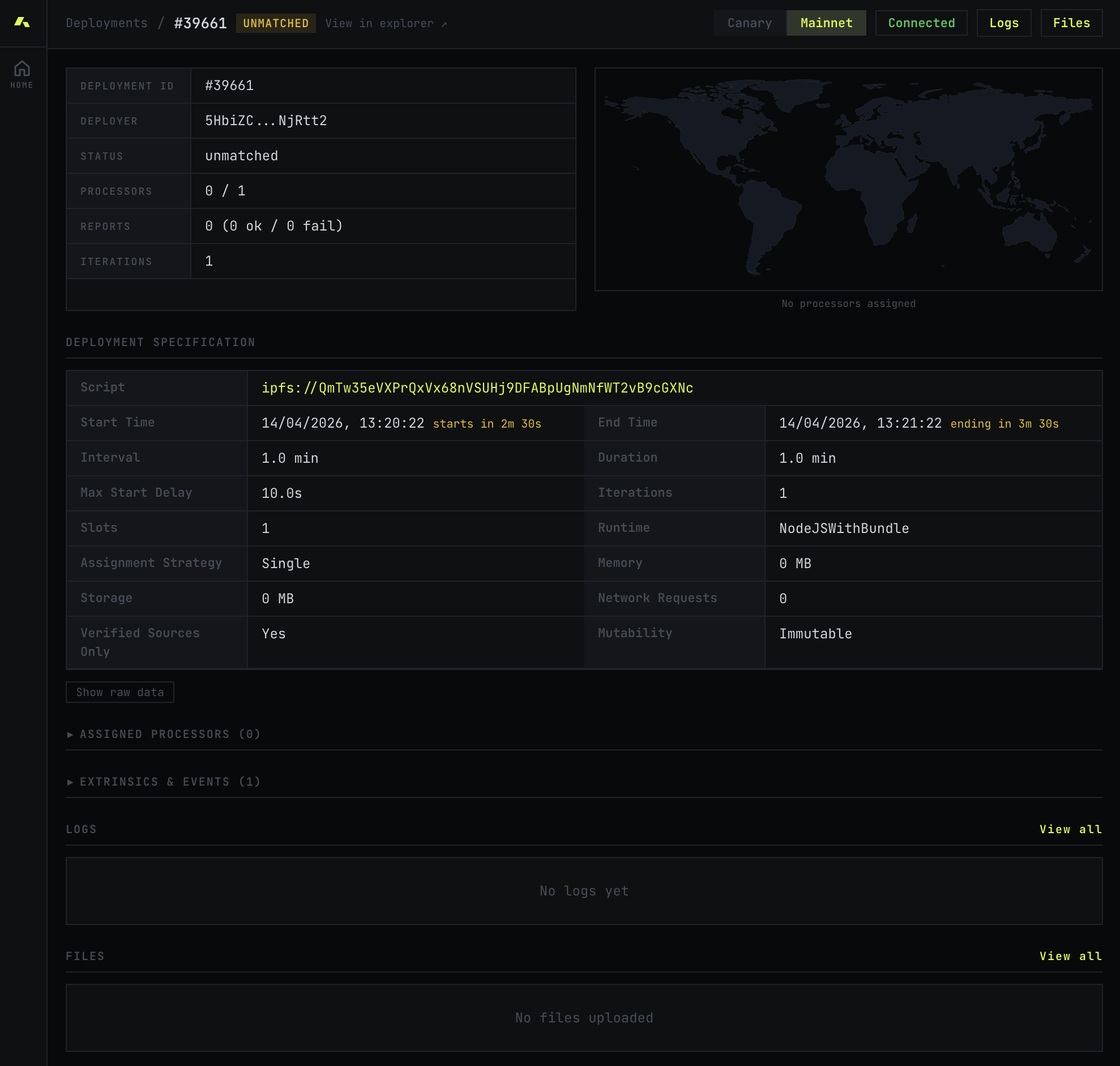
4. View your deployment details, including status, specification, logs, and uploaded files:
5. Inspect live logs from your processors in the Log Viewer:
Requesting a New View Key
View keys are time-limited. If yours has expired, request a new one:
acurast devtools <deployment-id>
This prints a fresh DevTools URL that you can open in your browser.
File Uploads
When DevTools are enabled, your processor scripts can upload files (up to 10 MB) to the DevTools API using the _DEVTOOLS_ global.
API
_DEVTOOLS_.uploadFile(filename, content, mimeType, onSuccess, onError);
| Parameter | Type | Description |
|---|---|---|
filename | string | Name of the file to upload |
content | string | File content |
mimeType | string | MIME type (e.g., "text/plain", "application/json") |
onSuccess | (response) => void | Callback on successful upload |
onError | (error) => void | Callback on failure |
The success callback receives an object with the following fields:
{
  "id": "file-id",
  "filename": "output.json",
  "mimeType": "application/json",
  "fileSize": 1024,
  "createdAt": "2025-04-10T12:00:00Z"
}
Example
_DEVTOOLS_.uploadFile(
  "result.json",
  JSON.stringify({ status: "ok", data: [1, 2, 3] }),
  "application/json",
  (response) => {
    console.log("Upload successful:", response.id);
  },
  (error) => {
    console.error("Upload failed:", error);
  }
);
File uploads only work when DevTools are enabled ("enableDevtools": true) and the deployment uses a local bundle (not an ipfs:// URL). Using DevTools with an IPFS URL will show a warning, since the DevTools snippet can only be injected into local bundles.
Privacy
- Logs are only accessible with a valid view key.
- The key is scoped to the specific deployment.
- Only the deployment owner can request new keys.
Environment Variables
You can customize the DevTools URLs using environment variables in your .env file:
| Variable | Default | Description |
|---|---|---|
ACURAST_DEVTOOLS_URL | https://devtools.acurast.com | DevTools frontend URL |
ACURAST_DEVTOOLS_API_URL | https://api.devtools.acurast.com | DevTools API URL |